Notifications
Configure email rules and Slack webhooks for build events, failures, and agent alerts.
BuildButler can notify your team through email and Slack whenever build events occur. Configure notification rules from the Notifications page in the sidebar.
The Notifications page has three tabs: Email Rules, Slack, and Logs.
Email Rules
Email rules send rich HTML email reports when builds complete. Each rule can match jobs by pattern and include customisable report sections.
Creating an email rule
Navigate to Notifications → Email Rules and click + Create Rule.
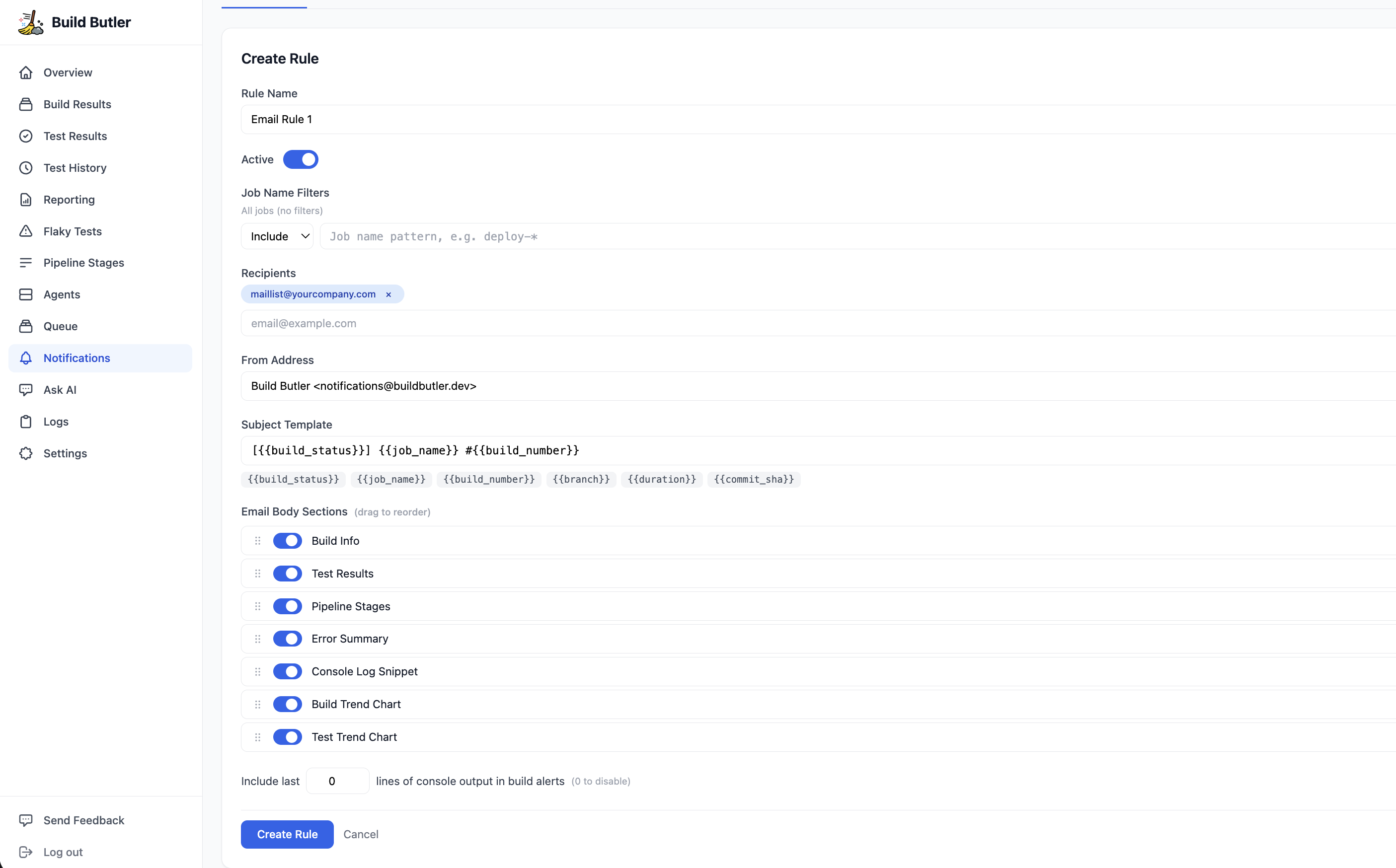
- Rule Name — a descriptive name (e.g.
Email Rule 1) - Active — toggle to enable or disable the rule
- Job Name Filters — optionally filter by job name pattern (e.g.
deploy-*); leave empty to match all jobs - Recipients — one or more email addresses to send the report to
- From Address — the sender address (default:
Build Butler <[email protected]>) - Subject Template — customize the email subject using template variables:
{{build_status}},{{job_name}},{{build_number}},{{branch}},{{duration}},{{commit_sha}} - Email Body Sections — toggle and reorder the sections included in the email:
- Build Info
- Test Results
- Pipeline Stages
- Error Summary
- Console Log Snippet
- Build Trend Chart
- Test Trend Chart
- Include last N lines of console output — set the number of console output lines to append to build alerts (0 to disable)
Click Create Rule to save.
Managing rules
Each rule shows:
- Rule name and Active / Inactive status badge
- Number of recipients, filters, and sections
- Send statistics (e.g., "154 sent (9 failed)")
Actions available for each rule:
- Clone — duplicate the rule with a new name
- Edit — modify the rule configuration
- Delete — permanently remove the rule
Slack
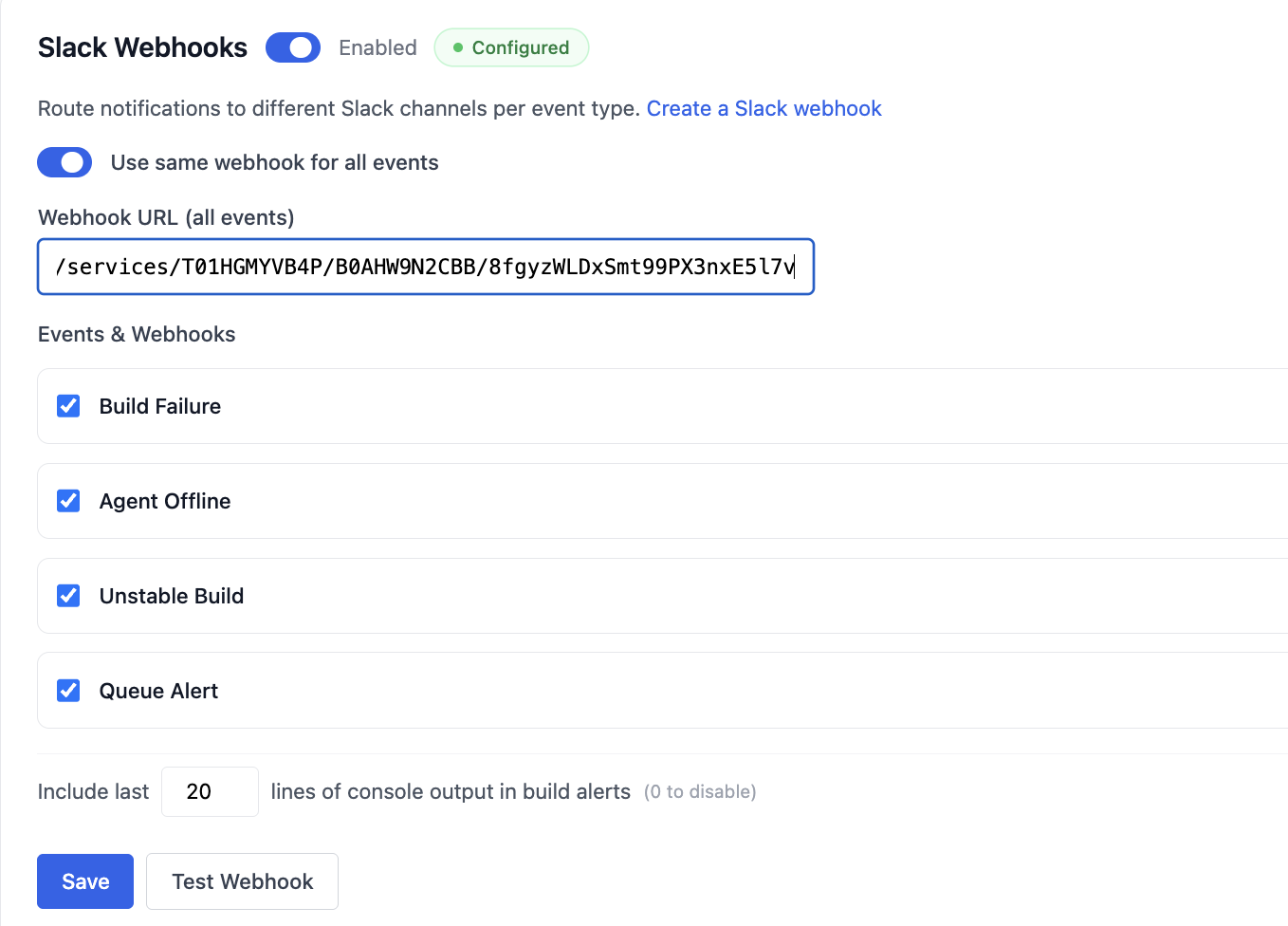
The Slack tab lets you configure webhook-based notifications routed to different Slack channels per event type.
Setting up Slack webhooks
- Navigate to Notifications → Slack.
- For each event type, paste the Slack incoming webhook URL.
- Enable or disable events using the checkboxes.
- Click Save.
You can toggle Use same webhook for all events to send everything to one channel, or configure separate webhook URLs per event.
Supported events
| Event | Description |
|---|---|
| Build Failure | A build finished with FAILURE status |
| Agent Offline | A Jenkins agent went offline |
| Unstable Build | A build finished with UNSTABLE status |
| Queue Alert | Queue wait time exceeded the configured threshold |
Each event shows its configured webhook URL with a green indicator when connected. Click Test next to any event to send a test notification.
Console output in alerts
You can include the last N lines of console output in build failure and unstable build alerts. Set the line count in the Include last __ lines of console output in build alerts field (set to 0 to disable).
Testing
Click Test Webhook at the bottom of the page to send a test message to all configured webhooks.
Queue Alert Rules
Get alerted when your Jenkins build queue stays above a threshold for a sustained duration.
Each rule has the following settings:
- Mode —
Overall Queue(total queue depth) orBy Agent Label(queue depth for a specific agent label) - Alert when queue exceeds — the queue size threshold that triggers an alert (default: 5)
- For more than (seconds) — how long the queue must stay above the threshold before alerting (default: 60)
- Check every (seconds) — how frequently the queue is checked (default: 120)
For By Agent Label mode, agent labels are populated automatically once agents report in.
Click + Add Rule to add multiple rules (e.g. one for overall queue and one per agent label).
Wait at least N minutes between alerts — sets a cooldown period to prevent repeated notifications for the same condition.
Click Save Queue Rules to apply.
Logs
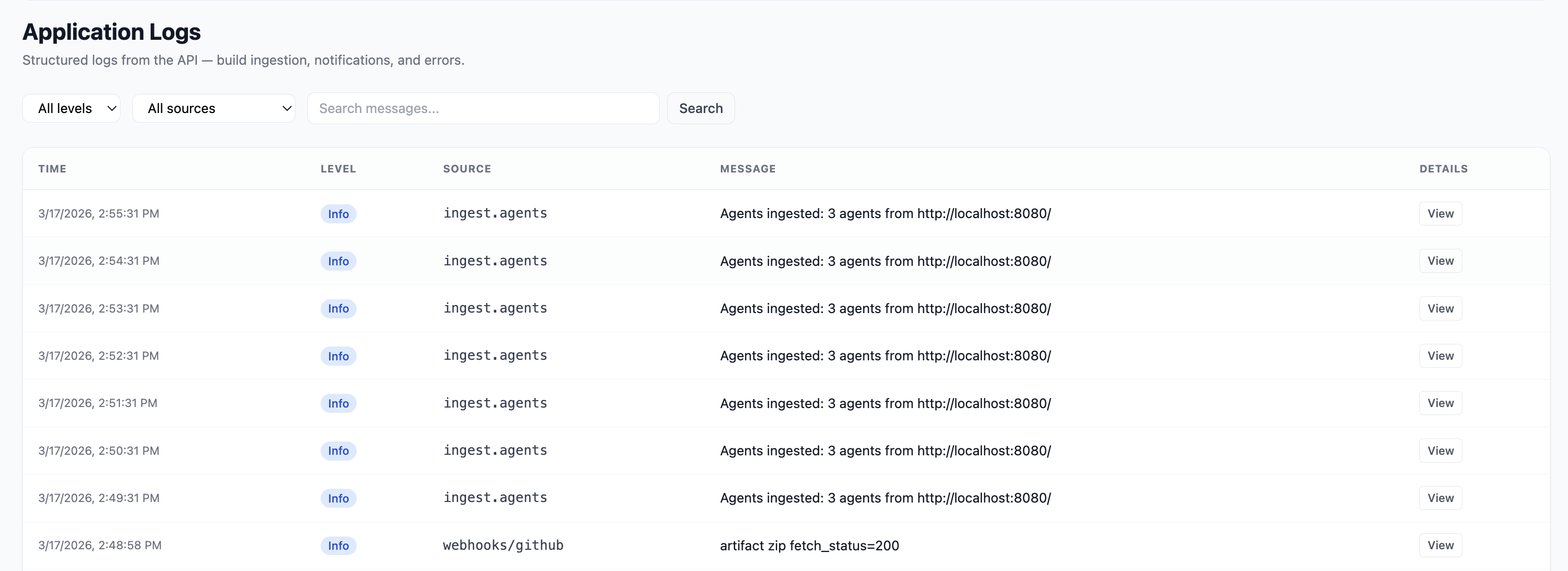
The Logs tab shows a history of all sent notifications, including delivery status and any errors.