Buildkite
Connect Buildkite pipelines to BuildButler via the CLI reporter or an org-level webhook.
Send build results, step stages, and test data from Buildkite to BuildButler using the @buildbutler/ci CLI or a zero-config org-level webhook.
Option 1: Org-level webhook
Tip
The org-level webhook (Option 1) is the recommended approach — it requires no per-pipeline changes and works automatically across your entire organization.
Configure one webhook on your Buildkite organization and every build across all pipelines is automatically reported to BuildButler — no per-pipeline pipeline.yml changes needed.
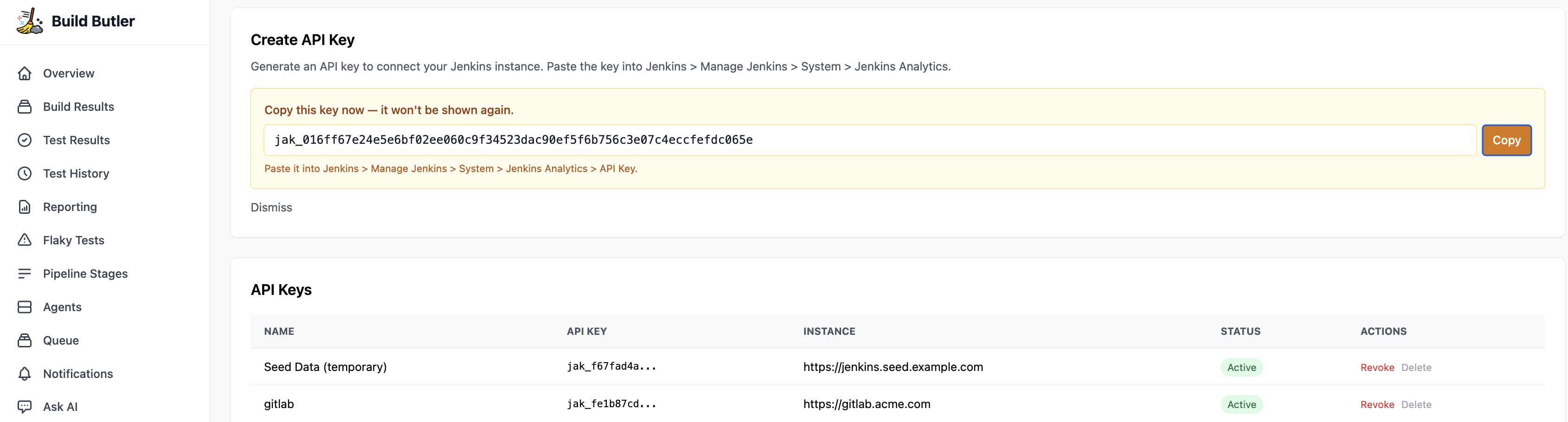
1. Generate an API key
- In the BuildButler web app, go to Settings → Add API key. Copy it — you'll need it in the next step.
2. Add the webhook
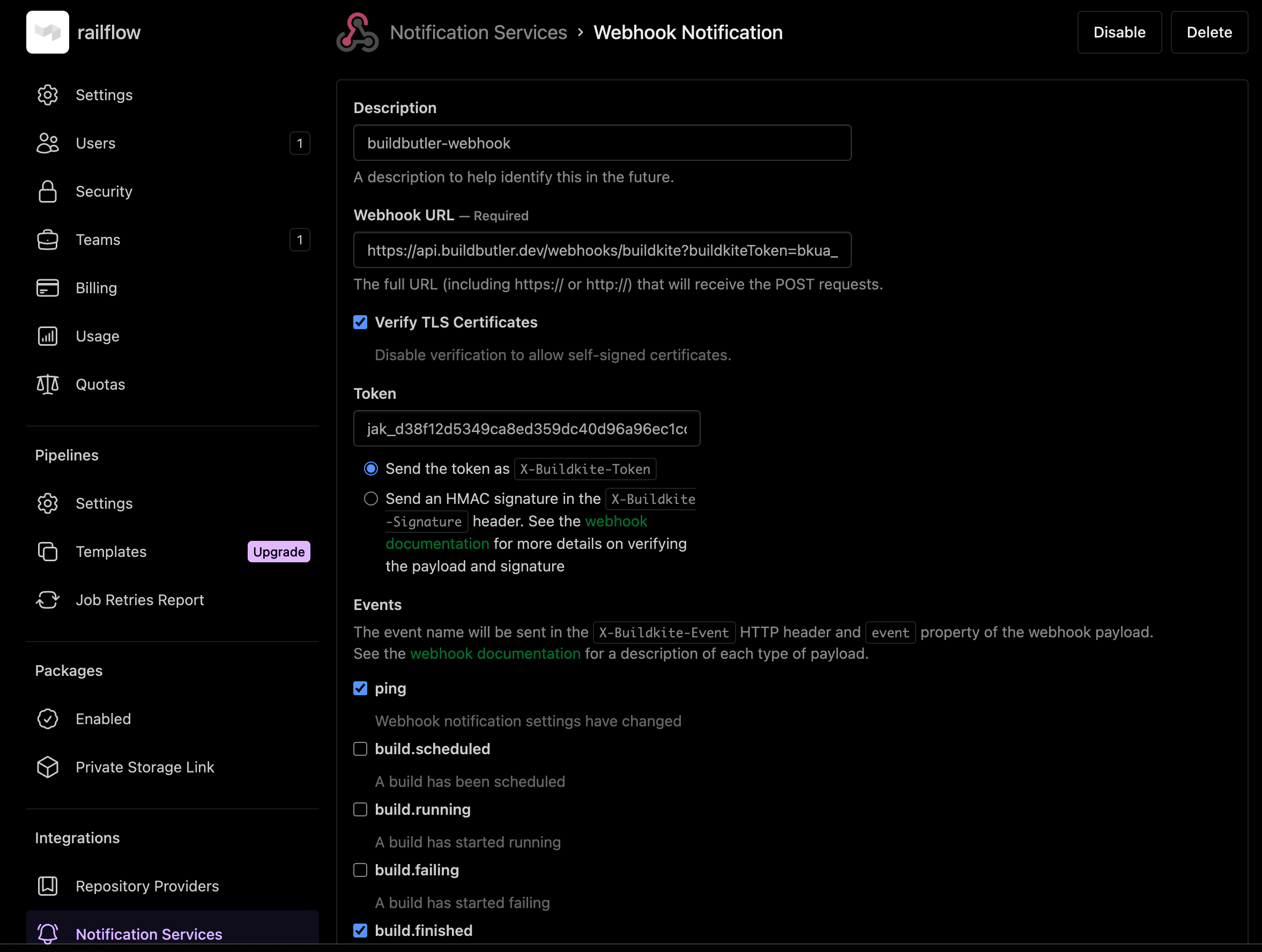
- Go to your Buildkite organization → Settings → Notification Services → Add → Webhook
- Fill in the form:
| Field | Value |
|---|---|
| Webhook URL | https://api.buildbutler.dev/webhooks/buildkite?buildkiteToken=YOUR_BUILDKITE_TOKEN |
| Self-hosted URL | http://your-server:3000/webhooks/buildkite?buildkiteToken=YOUR_BUILDKITE_TOKEN |
| Token | Your BuildButler API key |
| Events | Tick build.finished only |
- Click Add Webhook Notification
See Buildkite Access Token for how to generate YOUR_BUILDKITE_TOKEN.
3. How it works
- BuildButler authenticates using the Token field (sent as
X-Buildkite-Tokenheader) - Only
build.finishedevents are stored — other events are acknowledged and ignored - Build result, branch, and commit are extracted directly from the webhook payload
Option 2: CLI Pipeline Reporter
Tip
If webhooks are not available, add a BuildButler CLI Reporter step in your pipeline to report build results.
If webhooks are not available, add a reporter step in your pipeline that runs after all steps complete.
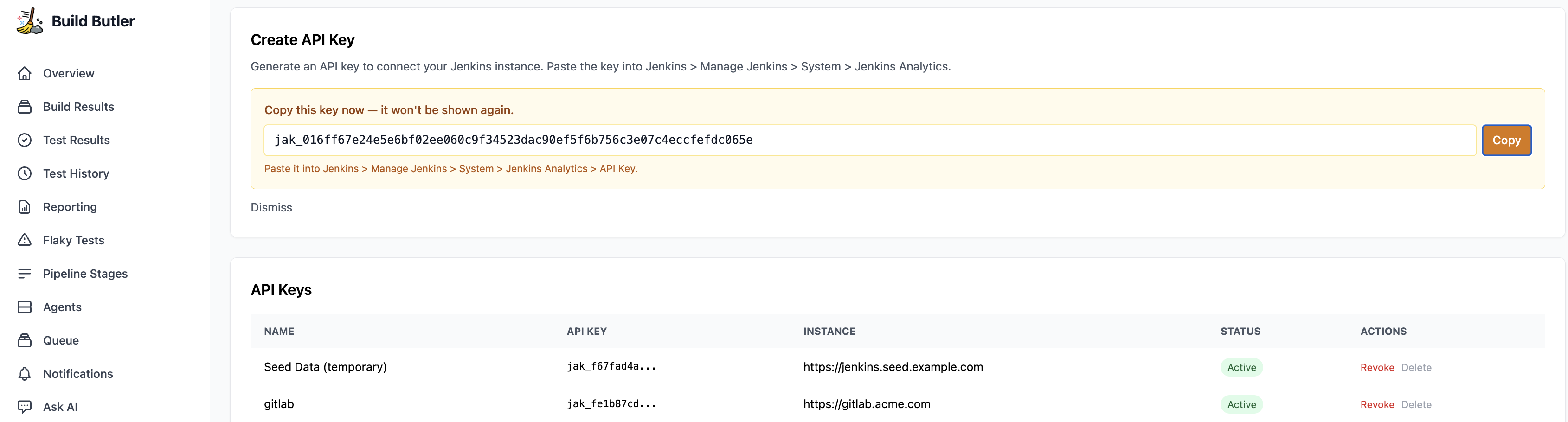
1. Generate an API key
- In the BuildButler web app, go to Settings → Add API key. Copy it — you'll need it in the next step.
2. Add the reporter step
See Buildkite Access Token for how to generate your-buildkite-token.
Key settings:
if: always()— runs even when earlier steps failTEST_RESULTS_GLOB— glob path to JUnit XML test results; remove if you have noneBUILDKITE_API_TOKEN— optional Buildkite API token for fetching per-step stage details
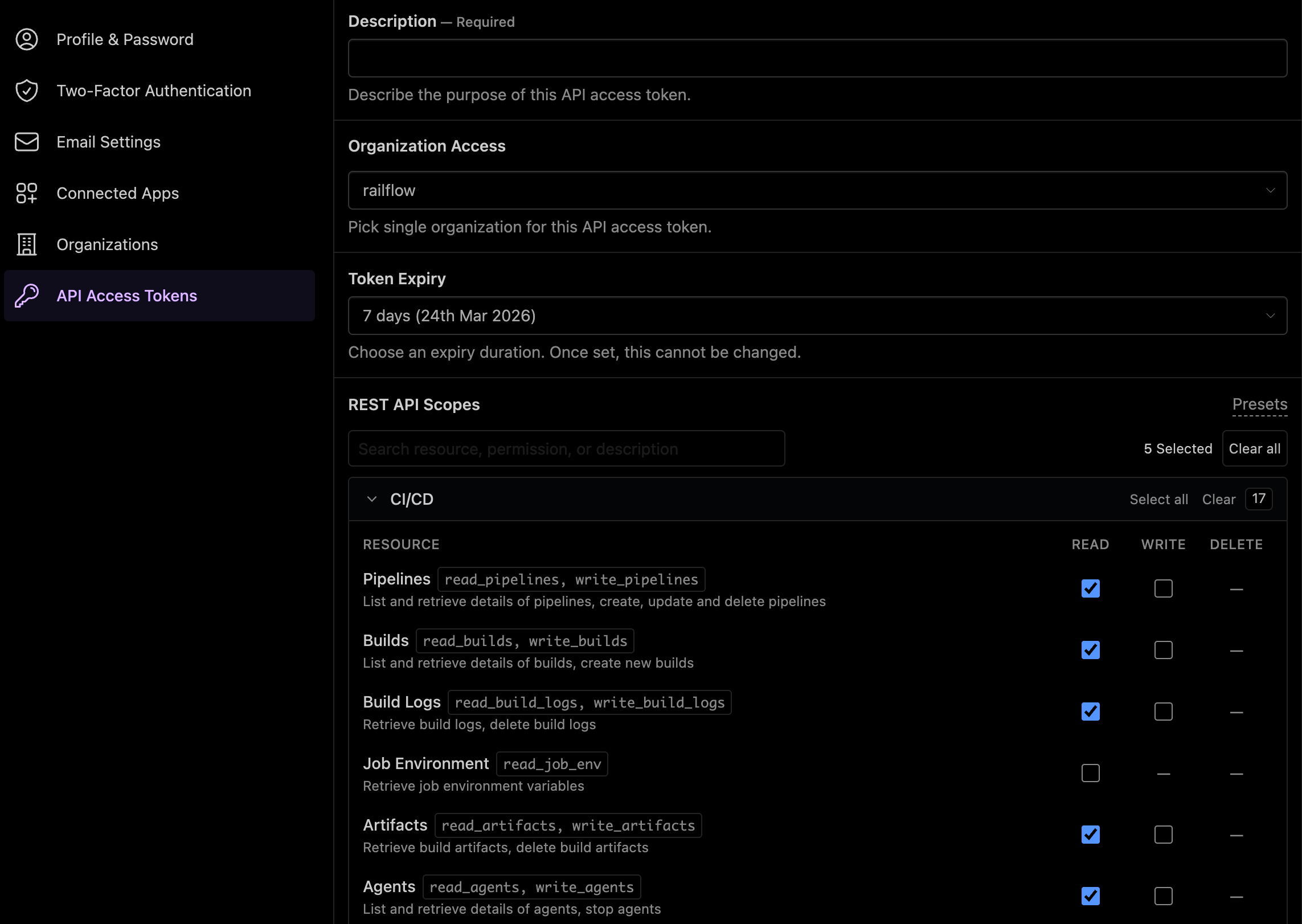
Buildkite Access Token
Generate a Buildkite access token with read scopes for: pipelines, builds, build logs, artifacts, and agents.
Data mapping
| Buildkite | BuildButler |
|---|---|
| Organization | Server |
| Pipeline | Job |
| Build | Build |
| Step | Pipeline stage |
| Agent | Agent |
Troubleshooting
| Symptom | Likely cause | Fix |
|---|---|---|
| Builds not appearing | Wrong API key | Verify BUILDBUTLER_API_KEY is correct |
Webhook returning 401 | Invalid token | Re-copy the API key from BuildButler Settings into the Token field |
Webhook returning skipped | Wrong event type | Ensure only build.finished is ticked |
| No stage details | Missing BUILDKITE_API_TOKEN | Add a Buildkite API token with Read Builds scope |