Build Details
Drill into individual builds — pipeline stages, test results, build logs, build triage, test triage, and JIRA references.
The Build Details page gives you a complete view of a single build. Click Details on any row in the Build Results table to open this page.
Overview
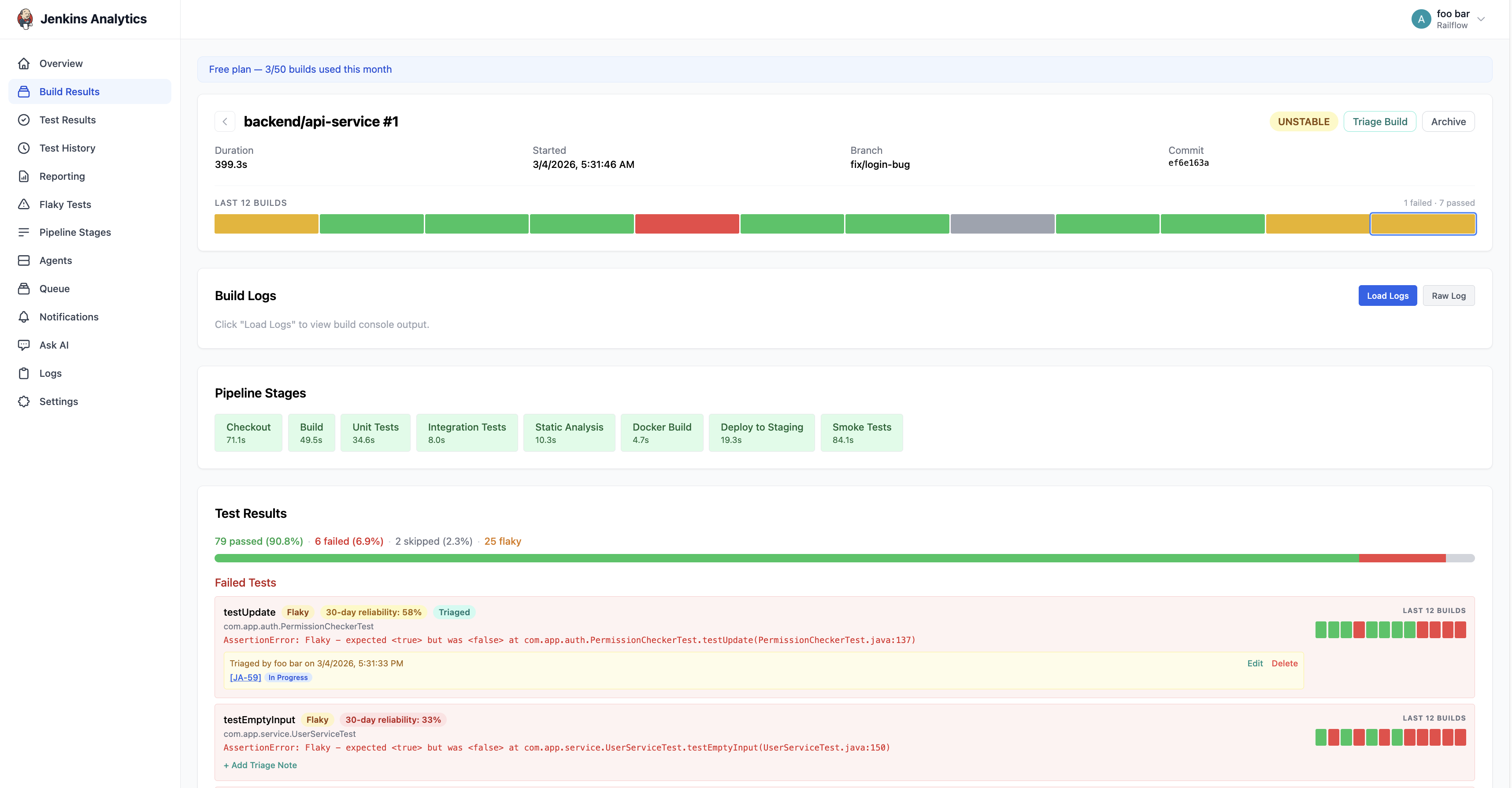
The top of the page shows build metadata including job name, build number, status, duration, start time, branch, and commit. A visual history bar shows the outcome of recent builds for the same job.
Pipeline Stages
For pipeline jobs, each stage is displayed as a colour-coded block showing the stage name and duration. Failed stages are highlighted so you can immediately see where the build broke.
Build Logs
Click Load Logs to view the full build console output directly in BuildButler. No need to switch back to your CI system to read logs.
Test Results
The test results section shows a summary (passed, failed, skipped, flaky) followed by a detailed breakdown. Failed tests are listed first with the error message, class name, and a colour-coded history of the last 6 builds. Tests flagged as flaky are labelled with their 30-day reliability percentage.
Build Triage
Click the Triage Build button in the top right corner to add triage notes to a build. This is useful for documenting the root cause of a failure, assigning ownership, or tracking follow-up actions.
Write your notes in the triage text area and click Save. You can reference JIRA tickets directly in your notes (see JIRA References below).
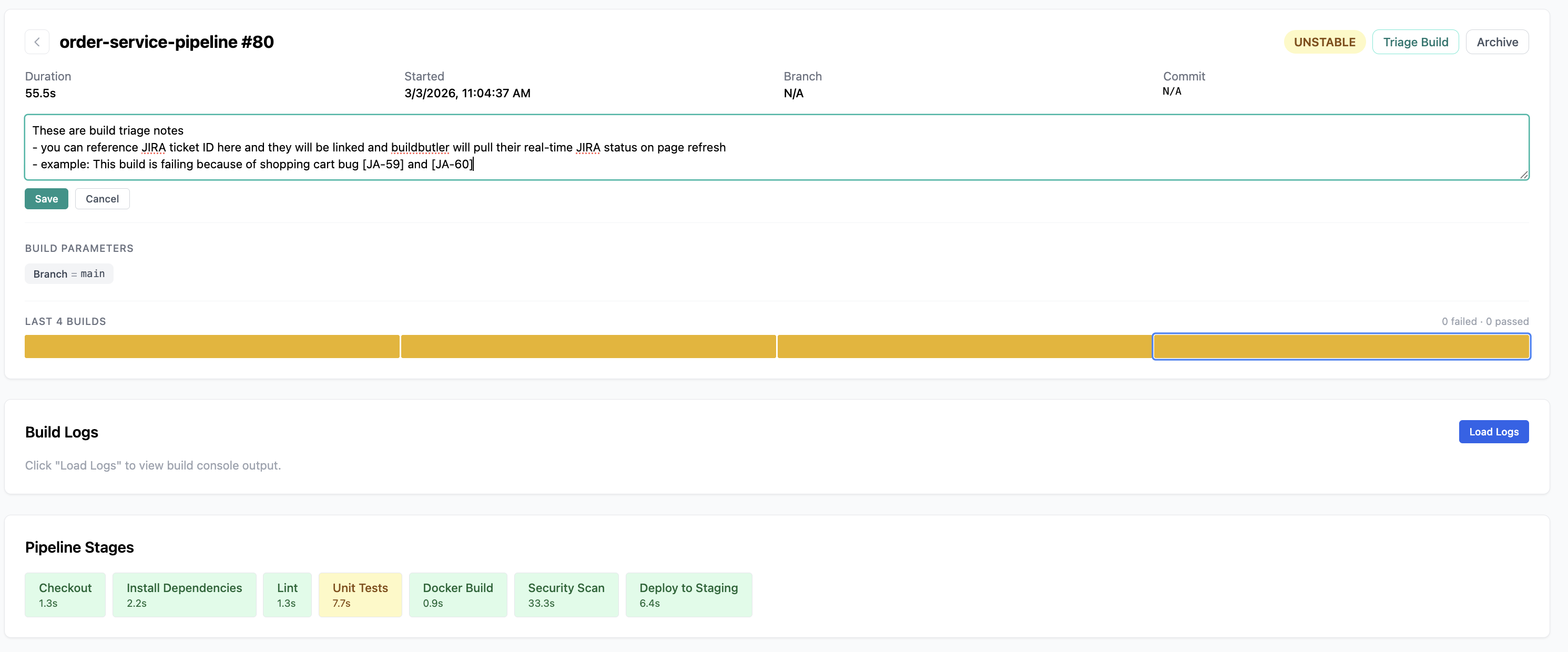
Once saved, the build status changes to Triaged and the notes are displayed at the top of the build details page with a timestamp and the name of the person who triaged it. You can Edit or Delete triage notes at any time.

Test Triage
Individual failed tests can also be triaged. Click + Add Triage Note on any failed test to add notes specific to that test failure. This lets you document why a particular test failed independently of the overall build triage.

Once saved, the test is marked as Triaged and the notes are displayed inline with the test result. Like build triage, test triage notes show a timestamp, the author, and support Edit and Delete actions.

JIRA References
Both build triage and test triage notes support inline JIRA ticket references. Type a JIRA ticket ID in square brackets (e.g. [JA-59]) in your triage notes and BuildButler will automatically:
- Link the ticket ID to your JIRA instance
- Pull the real-time JIRA status on page refresh (e.g. In Progress, To Do, Done)
This makes it easy to connect build and test failures to the JIRA tickets tracking the fix, and see at a glance whether the fix is in progress.
Example: This build is failing because of shopping cart bug [JA-59] and [JA-60]
After saving, the ticket IDs become clickable links with live status badges displayed next to them.