Azure DevOps
Connect Azure DevOps Pipelines to BuildButler via a Service Hook webhook.
Send build results, pipeline stages, logs, and test data from Azure DevOps Pipelines to BuildButler using Azure's built-in Service Hooks. No plugin or extension required.
How it works
Azure DevOps fires a webhook when a pipeline run completes. BuildButler receives it, records the build, and optionally enriches it with pipeline stages, logs, and test results by calling back to the Azure DevOps REST API using a Personal Access Token (PAT) you supply.
Setup
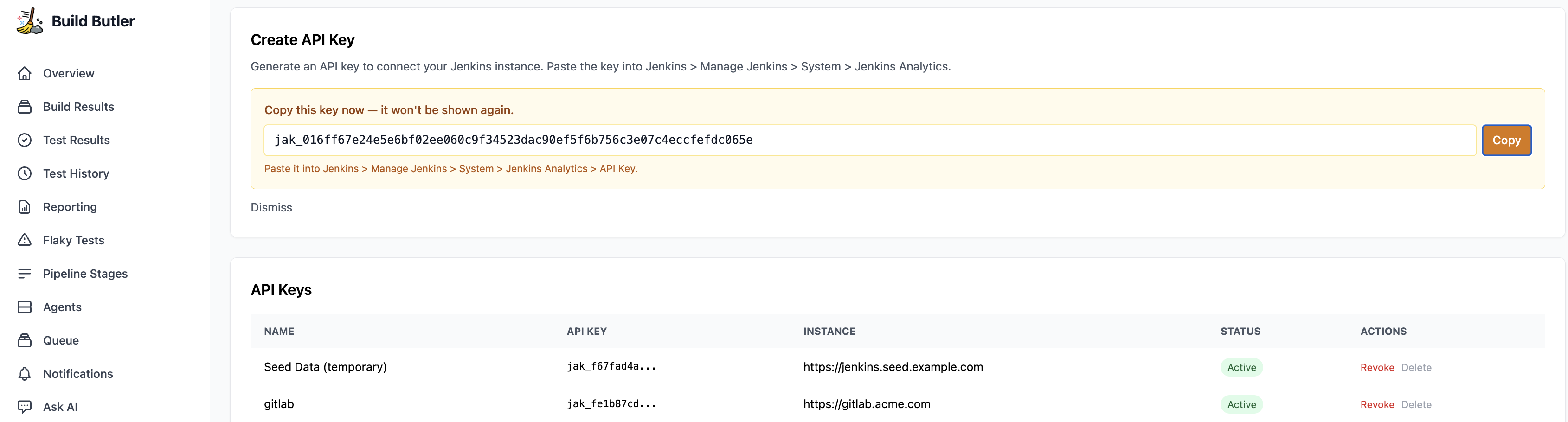
1. Generate an API key
- In the BuildButler web app, go to Settings → Add API key. Copy it — you'll add it to the webhook URL.
2. Service Hook Config
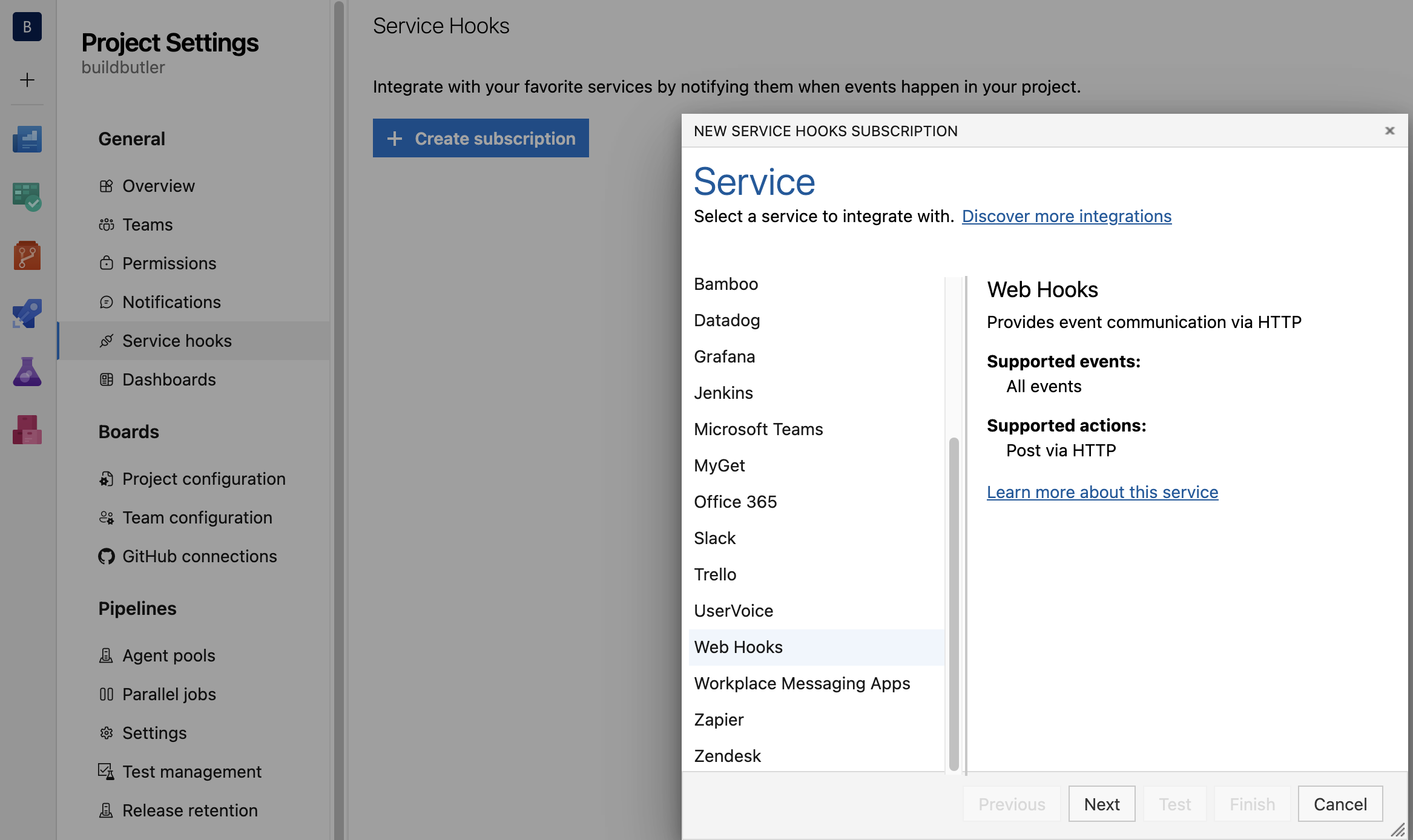
- Go to your Azure DevOps Project settings
- Click Service hooks in the left sidebar
- Click + Create subscription
- Select Web Hooks from the list and click Next
3. Configure the trigger
- Trigger on this type of event:
Build completed - Filters: leave blank to receive all pipelines, or filter by pipeline name or status
Click Next.
4. Set the webhook URL
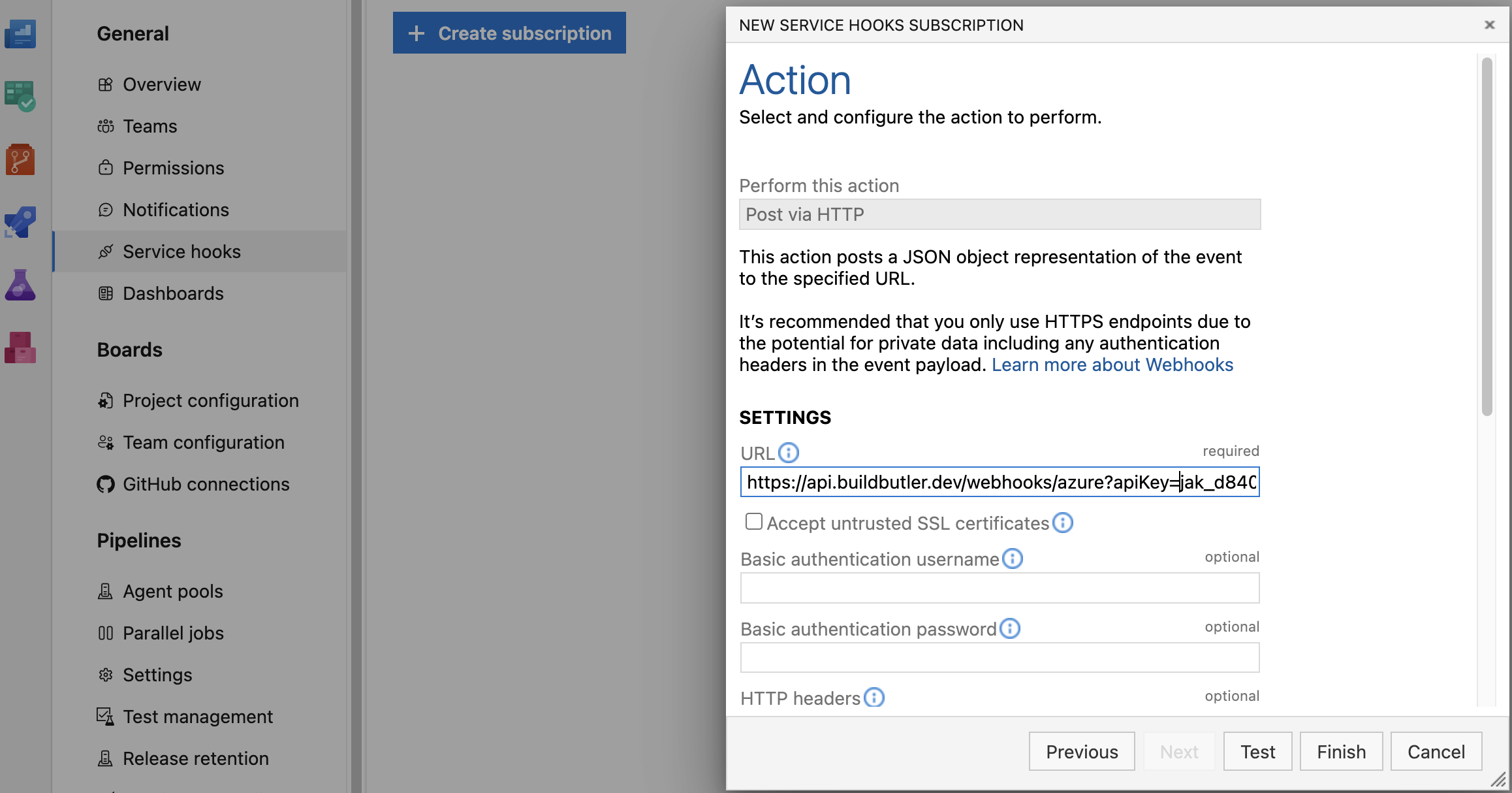
| Cloud URL | https://api.buildbutler.dev/webhooks/azure?apiKey=YOUR_API_KEY |
| Self-hosted URL | http://your-server:3000/webhooks/azure?apiKey=YOUR_API_KEY |
Replace YOUR_API_KEY with the key from step 1.
Set the following options:
- URL: use the Cloud URL above, or your self-hosted URL if running on-prem
- Basic authentication username / password: leave blank
- HTTP headers: leave blank
Click Finish.
Enrichment
By default, BuildButler records build name, status, and duration from the webhook payload alone.
To also pull in pipeline stages, build logs, and test results, add a Personal Access Token (PAT) to the webhook URL:
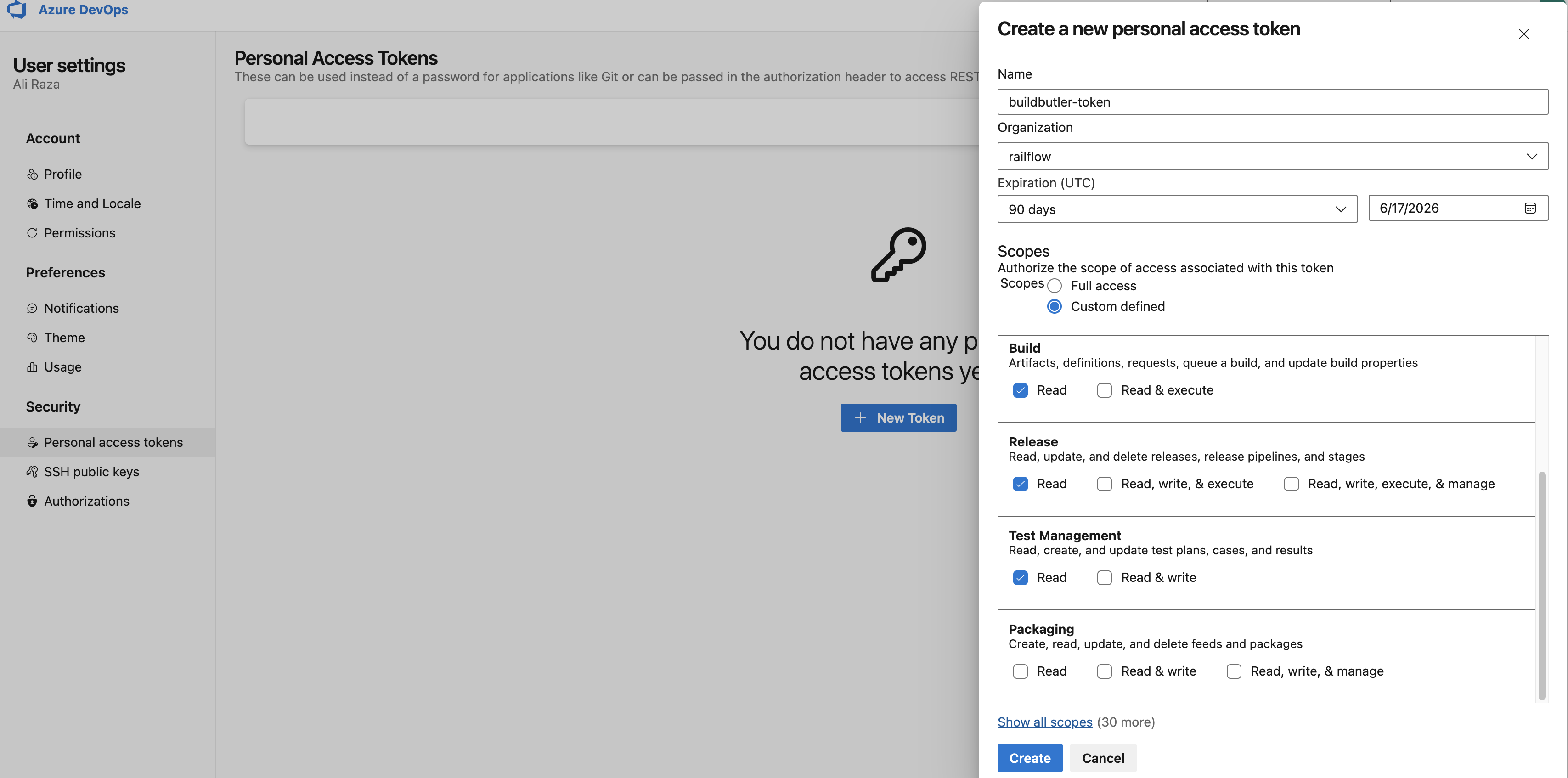
Creating a PAT
- In Azure DevOps, click your profile icon and select Personal access tokens
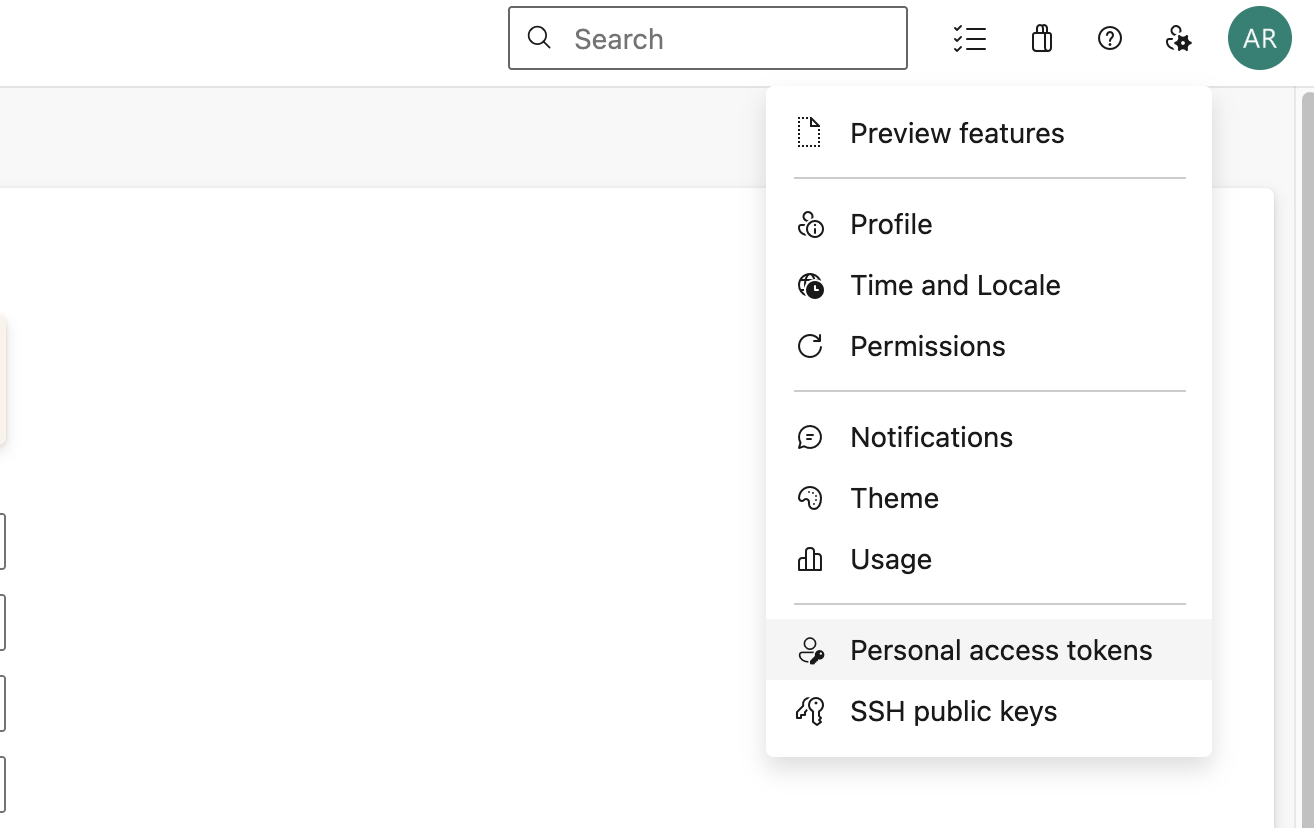 2. Click + New Token
3. Give it a name (e.g.
2. Click + New Token
3. Give it a name (e.g. buildbutler-token) and select your organization
4. Under Scopes, select Custom defined and tick:
- Build → Read
- Release → Read
- Test Management → Read
- Agent Pools → Read
- Click Create and copy the token
Add it as azpToken in the webhook URL.
What enrichment provides
| Data | Without PAT | With PAT |
|---|---|---|
| Build name, status, duration | ✅ | ✅ |
| Branch, commit SHA | ✅ | ✅ |
| Pipeline stages and their statuses | ❌ | ✅ |
| Build logs | ❌ | ✅ |
| Test results (pass/fail/skip counts, individual test cases) | ❌ | ✅ |
What gets recorded
Each completed pipeline run is recorded as a build in BuildButler with:
| Azure DevOps | BuildButler |
|---|---|
| Organization + project | Server / namespace |
| Pipeline definition name | Job |
| Pipeline run ID | Build number |
succeeded | Success |
failed | Failure |
partiallySucceeded | Unstable |
canceled | Aborted |
Multiple projects
Each Azure DevOps project needs its own Service Hook subscription. BuildButler uses the org and project name from the webhook payload to namespace builds, so pipelines from different projects won't collide.
Troubleshooting
| Symptom | Likely cause | Fix |
|---|---|---|
| Webhook shows as failed in Azure DevOps | Wrong or missing apiKey | Check the apiKey query parameter in your URL |
| Builds appear but no stages or test results | azpToken missing or expired | Create a new PAT with Build: Read and Test Management: Read scopes |
| Duplicate builds | — | Each build is keyed by a deterministic ID — re-delivery of the same event is idempotent |