TeamCity
Connect your TeamCity server to BuildButler for build and test analytics.
Connect your TeamCity server to BuildButler to import build configurations, test results, and pipeline data.
1. Generate an API key
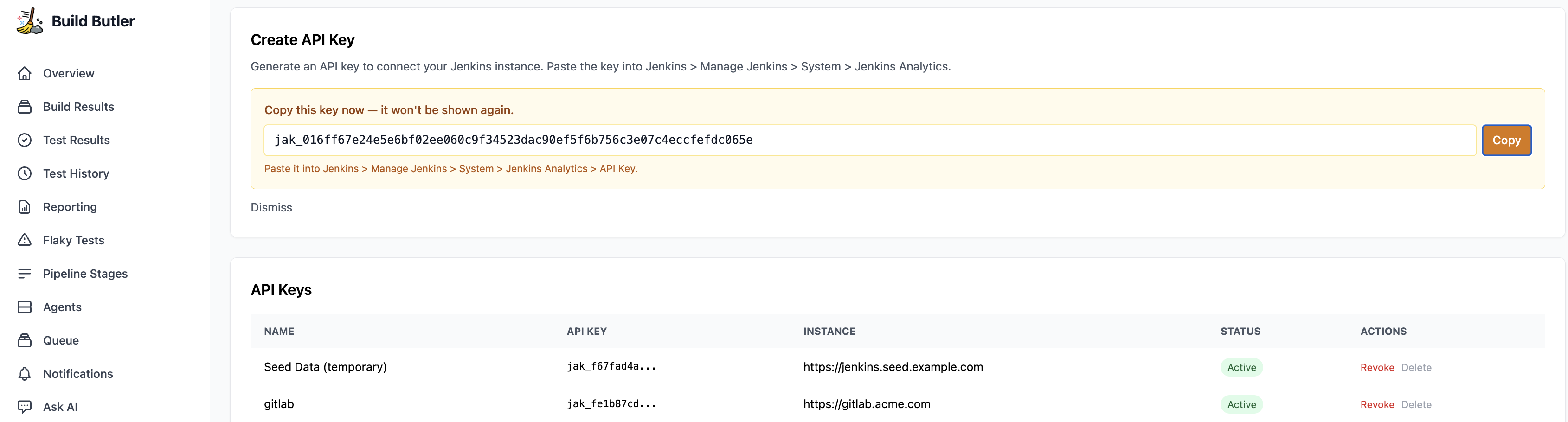
- In the BuildButler web app, go to Settings → Add API key. Copy it — you'll need it when configuring the plugin.
2. Generate a TeamCity Access Token
- Log in to TeamCity and click your username in the top-right corner.
- Go to Profile → Access Tokens.
- Click Create access token.
- Give it a name like
buildbutler. - Set the appropriate permissions (see Permissions required below).
- Click Create and copy the token.
3. Add the connection in BuildButler
Navigate to Settings → Integrations → Add TeamCity Connection and fill in the form:
Click Test Connection to verify. BuildButler will call the TeamCity REST API and confirm it can access your build configurations.
Build configuration selection
After connecting, BuildButler will list all accessible build configurations. Select the ones you want to monitor. BuildButler will:
- Import build results and history
- Track test results across builds
- Monitor build queue and agent status
- Collect build logs for analysis
Data mapping
TeamCity concepts map to BuildButler as follows:
| TeamCity | BuildButler |
|---|---|
| Project | Job group |
| Build Configuration | Job |
| Build | Build |
| Build Step | Pipeline stage |
| Test Suite | Test suite |
| Agent | Agent |
Permissions required
The access token needs the following permissions:
| Permission | Purpose |
|---|---|
| View project and all parent projects | Access build configurations |
| View build configuration settings | Read build steps and parameters |
| View build runtime data and statistics | Access build results and logs |
| View agent details | Monitor agent status |
Multiple instances
You can connect as many TeamCity servers as you like. Each connection syncs independently and appears as a separate source in the dashboard filter bar.
Troubleshooting
| Symptom | Likely cause | Fix |
|---|---|---|
401 Unauthorized | Invalid or expired token | Regenerate the access token |
403 Forbidden | Insufficient permissions | Check token permissions |
| Timeout | Firewall or network issue | Ensure BuildButler can reach the TeamCity URL |
| SSL error | Self-signed certificate | Configure trusted certificates in BuildButler settings |